Saturday, 16 July 2016

10 ways to improve your Wi-Fi Performance 2016

10 ways to improve your Wi-Fi Performance 2015

Wireless networking can be more temperamental than the average British summer. A number of factors can reduce your wireless network's speed, which impedes streaming, online gaming, download times and web browsing.

10 ways to improve your Wi-Fi Performance 2015


But unlike the weather, there's more that you can do than merely moan about your network performance - in fact, there are many ways you can look at improving it. Here are ten suggestions for how you can get a faster wireless network, from tweaking your existing setup to looking at hardware upgrades.

It sounds obvious that a more up-to-date router will be faster, but you may be unaware of how old and over-the-hill your existing networking kit is. A really old ISP-supplied router might be stuck on the ancient and painfully slow 802.11g standard, with a single antenna, and not enough processing capability to handle multiple devices at once.

All ISPs provide you with a router or modem when you sign up, usually with wireless capability. They're never usually that great, and replacing it with a new model could provide a significant boost to speeds.

Of course, this means reaching for your wallet. If all you want is better speeds for streaming Youtube videos or browsing, you certainly don't need the most expensive and feature-packed wire-less router you can find.

But you might not need to spend anything. If your ISP supplied your router, give them a call and see if they'll upgrade it for free. You might just be in luck.

If you want the fastest possible download speeds and the lowest latency when playing online games, a new router that supports 802.11ac, the latest wireless networking standard, is probably the best upgrade you can implement.

802.11ac means speeds roughly between two and five times faster than 802.11n. It significantly increases the amount of data that can be squeezed into each channel to 433Mbit/sec, with most routers capable of three streams, theoretically for total speeds up to 1300 Mbit/sec.

It also introduces Beamforming, a technology that calculates the rough position of connected computers and increases power in that direction, which can improve connectivity.

A major caveat though is that to see these speeds, your computer, smartphone or tablet will also need to support 802.11ac. The majority of the newest gadgets do, but if you have an older laptop, you'll need to buy a wireless dongle that supports 802.11ac, which you can just plug into a USB port.

802.11ac routers can be quite expensive, and the dongle is an additional cost on top. The cheaper routers retail for around £80 new (around $125, AU$160), but a second-hand router can be a lot less, and still offer a huge performance leap over older technology.

Why rely on wireless alone? If you're stretching a wireless signal from one end of the house to another, speeds are guaranteed to suffer. Powerline ethernet means network data travels between computers over the electricity circuit in your home, offering potentially faster speeds than even the best wireless technology - and this complements, rather than replaces, your wireless network.

Modern Powerline Ethernet adaptors offer close to 1Gbit/sec speeds (500Mbit/sec each way). You'll see excellent latency times, and streaming video from a NAS will be beautifully quick.

But as with wireless, extra-long distances can affect performance, while the wiring in your home and interference from other devices can also reduce speeds.

Powerline Ethernet adaptors are a fixed, wired networking technology, which is great for stretching them to a desktop PC in the office, but no use for a tablet. Some products now solve this problem with built-in wireless capability at one end of the Powerline adaptors, offering a neat way to extend wireless coverage at the same time.

A bridge is a repeater that extends the range of your wireless network. It copies all the settings, uses the same network name and password and dishes out IP addresses to clients from the same DHCP server.

For devices connecting to your wireless network, the bridge will be effectively invisible - all they will see is a single SSID. And you can use multiple bridges to extend the wireless network further. They're used extensively in hotels, large campuses or anywhere offering a single wireless network to users over a large area, and they work just as well in homes.

You can have both wired or wireless bridges. A wired bridge will be faster but is yet another device to rely on your wireless network. Consider combining a bridge with Powerline Ethernet (discussed in the last slide) to bring a solid wireless connection to another room.

An obvious sounding adjustment you can make is to move your wireless router. 
Radio waves travel in a straight line from router to client device, and can be picked up from anywhere in a rough circle emanating from the router.

You should get better speeds around your home if the router is placed in a more central location.

Often, a modem or router will be gathering dust on the floor, right next to a telephone or cable point on an external facing wall, which is great for wireless speeds in the front garden, but not so good for upstairs back rooms. However, note that long telephone cables for DSL connections will degrade the signal.

Buried in your router's built-in configuration software will be a set of options to configure your wireless network. Adjusting one of these settings, the wireless channel, can make a noticeable difference to your speeds. They're labelled between 0 and 13 and represent small differences in the exact wireless frequency your router uses.

You'll need to know the login details for your router's software, which are probably on a sticker underneath it. Every router is different, so we can't tell you exactly where to find the wireless channel setting, but it's often under an Advanced header in the Wireless menu.

In a built-up urban area, there are likely to be dozens of wireless networks in range of your computer, and the majority of these will be competing for space in the 2.4GHz radio spectrum.

The best thing to do is try a bit of trial and error, but you can check the congestion of any given channel by analysing the nearby wireless networks. A nifty piece of Windows software called InSSIDer (from Metageek) can be used for this, while on a Mac an app called Netspot will do the same thing.

It's worth looking at these settings anyway. If the option is set to automatically choose a channel, the router can change this while it is on sometimes, causing havoc for some devices that are currently connected. Changing to a fixed channel may help with stability.

Image Credit: Micjeyjaeer (Own work) [CC BY-SA 3.0], via Wikimedia Commons

All 802.11n routers can operate at 2.4GHz, but most models now offer 5GHz as well. 5GHz is much faster than 2.4GHz, but you lose some range with it, with a sharp cut-off point beyond around 10 metres.

It's worth checking if switching your wireless network to 5GHz improves speeds. Once again, log in to your router's software and have a poke around the wireless settings.

It's important to note that many routers can output a network at 2.4GHz or 5GHz, but not both at once, although there are some exceptions. More often than not, routers can have two wireless networks, one at 2.4GHz, one at 5GHz, with two separate network names.

And as with 802.11ac, your computer needs to support the higher frequency, which is not entirely guaranteed.

If you have a lot of wireless devices, in a family home for example with multiple laptops, tablets and smartphones, when everyone is using the internet, things can get congested. A large file download can make it difficult for another user to stream video reliably, off iPlayer for example.

Instead of having a huge argument, you can avoid the potential need for counselling in later life by managing your bandwidth through a router's QoS (quality of service) function.

This can be a bit tricky to get right. It lets you prioritise certain applications on the network, and ensure they'll never be completely starved of bandwidth if another computer is using the connection.

You'll need to know your way around your router's software for this. First you need to switch each computer or device that will be included in the QoS list to a static (fixed) IP address. This will be in one of the Advanced Networking menus.

The exact way the QoS page is designed will vary greatly from router to router - but you should be able to create a list of the devices you wish to include, with the most important ones at the top, which are always reserved spare bandwidth when they use the connection, and other, less important devices, towards the bottom.

Likewise with applications, the priority goes to the port number and data type. Most QoS pages have presets for popular applications, but you might need to find out what port a certain game or application uses.

File-sharing applications (particularly torrents) rely on both downloading and uploading to share files. If a computer is sharing and uploading torrents at full speed it is probably gobbling up all the available bandwidth. This will make it impossible to request web pages or do much else.

If you or another user does run one of these programs, then set the upload bandwidth to 1KB/sec, create an application rule for it in your router's QoS settings, and whenever possible, shut the application down rather than let it run in the background.

Not every device in your home needs to run off wireless. The fewer devices that compete for wireless bandwidth, the better. For example you might have a games console and a TV streaming gadget like an Apple TV in the living room.

A long cable or a Powerline Ethernet adaptor and a network switch will mean both are guaranteed good network speeds and no longer compete for the same precious wireless bandwidth as the tablet, laptop or smartphone.

Enjoy !! :)


How to Reset Windows 8/8.1 admin Password Without Knowing Old Password

How To Reset Windows 8/8.1 Admin Password Without Knowing Old Password

How To Reset Windows 8/8.1 Admin Password Without Knowing Old Password

Today millions of users are using the latest version of Windows that is Windows 8 and 8.1 which is currently providing lots of features for their users. In this version you need to enter PIN or the password to access the administrator account but what if you forget your windows password. You think you need to install the new operating system in your computer system to access the services but actually you can change the password with the method with which we are here. So lets have a look on the method of How To Reset Windows 8/8.1 Admin Password Without Knowing Old Password. Yes it is possible and you can do  it with your self by just following a simple trick that i have discussed below.

How To Reset Windows 8/8.1 Admin Password Without Knowing Old Password

How To Reset Windows 8 Password

This method is based on Windows 8/8.1 password cracking through other virtual OS that you will run on your computer without actually installing it. With this you will access the internal files of computer and reset admin panel.


Just proceed through below steps.


First of all you need to create a Linux Live Cd through linux ISO File.Now boot this CD in your computer through boot menu.Now there navigate to C:\Windows\System32.And there rename sethc.exe to sethc1.exe.And rename cmd.exe to sethc.exe.Now simply restart your computer.Now you will see you login screen, simply press shift button five times.You will see command prompt will open.There type net user and hit enter.Now you will see the name of administrator account note it down.Now type net user user_name new password and hit enter as shown in screenshots.Thats it now type the password in login panel and you are logged in.

So above is all about How To Reset Windows 8/8.1 Admin Password Without Knowing Old Password. By this you can easily revover your forgotten password in windows and there will be no need to install new operating system in your computer to access the services.


How to find the serial key of Any Softwarw free 2015-2016

How To Find The Serial Key Of Any Software Free 2015- 2016

Method #1.

1.First You Have To open Google Homepage or Google Front page.

2. Type there your Software Name and “94FBR“ (For e.g. ” Photoshop 94FBR“)

3.In Google search result you see your product key name or you can open any webpage link.

How To Find The Serial Key Of Any Software Free 2015- 2016 *LATEST*

Use any product key and enjoy fully licensed software.

Method #2

A Direct Software To Get Serial Key - LINK TO CONNECT 


How To Root Android Phone Easily 2016 (Latest) - Full Guide

How To Root Android Phone Easily 2016 (Latest) - Full Guide

What Is Android Rooting ?

Android Rooting is jailbreaking for Androids and allows users to dive deeper into a phone’s sub-system. Essentially, it’ll allow you to access the entire operating system and be able to customize just about anything on your Android. With root access, you can get around any restrictions that your manufacturer or carrier may have applied. You can run more apps.

Of course, for the average user, rooting sounds like -- and can be -- a scary process. After all, "rooting" around in your smartphone's core software might seem like a recipe for disaster. One wrong move and you could end up with bricked handset.

The process requires users to back up current software and flash (install) a new custom ROM (modified version of Android).

#Benefits Of Android Rooting :-

1. Boost your Phone speed & Battery Life.

2. Remove Pre installed crap ware like System Apps.

3. Remove Bloatwares, Apps like Facebook, Chrome Keep sucking your Ram & battery by running in background So, Among the smartphone geek crowd, applications like these are referred to as “bloatware:” they do nothing but bloat the software by existing as unnecessary applications.

4. Tweak your phone like : Increase Video streaming speed, Increase Wifi Speed, Increase SIM detecting Speed, Increase SD read/write speed.

5. Most Important & Best part, Install Custom Kernel & Custom ROMS ( I will explain about it in Installing Custom ROM section Custom ROM section )

6. Finally, Truly Own your Device, Make it appear in the way you want.


#Preparing your phone for Rooting -

First Open Settings on your device. If  you do not see Developer Options toward the bottom of the Settings screen on your device, follow these steps to activate them.

1. Tap on About Phone and find the Build Number.

2. Tap on the Build Number seven times and the Developer Options will appear on the main page of the Settings.

3. Tap on the Back key to see the Developer Options.

4. Tap on Developer Options.

5. Check to enable USB Debugging.

6. Check to enable OEM Unlocking. 


Root Android Phone With/Without PC Easily

Root Android Phone using KingRoot Android Root App

#What is kingroot Android App?

Kingo Android ROOT is a software, programmed by years of dedicate development, which can help Android users to root their devices in the easiest and safest manner.There are many other softwares to root android devices but here mukeshtricks4u gives you full guide about Kingo Android App.It is free of any charges, risks and preparations.


#Steps To Root Android Phone

   1.  Download KingRoot Free


   2. Enable USB debugging mode on your phone. If it's running Android 4.0 or 4.1, tap Settings, Developer Options, then tick the box for "USB debugging.

Steps To Unable USB debugging - Enable USB debugging mode on your phone. If it's running Android 4.0 or 4.1, tap Settings, Developer Options, then tick the box for "USB debugging.


Press OK to Save the setting change.


   3. Run Android Root on your PC, then connect your phone via its USB sync cable. After a moment, the former should show a connection to the latter. Your device screen may show an "Allow USB debugging?" pop-up. Tick "Always allow from this computer," then tap OK

   This tutorial is all about KINGOROOT app. bt due to some restrictions i change kingoroot to KINGROOT App. its also easy to use. DOwnload king root from above link.


  4. As the kingo android root is connected with your android phone it will detect your phone automatically


  5. Now Click on ROOT Button to start Rooting.


  6. Its All done , your android phone is rooted successfully.


#How To Check If your Android Phone is rooted or not?

So, to check root in your android mobile, simply download Root Checker app from here & Click on Verify Root.


With Using this app you can easily Check Your phone is rooted or not.


By This software you can easily Root your android device.

Latest Android Hacking Apps 2016

Latest Android Hacking Apps 2016

#1 Hackode

Download Link - Hackode
Hackode : The hacker’s Toolbox is an application for penetration tester, Ethical hackers, IT administrator and Cyber security professional to perform different tasks like reconnaissance, scanning performing exploits etc.

#2 Androrat

Download Link - Androrat
Remote Administration Tool for Android. Androrat is a client/server application developed in Java Android for the client side and in Java/Swing for the Server.

#3 APKInspector
Download Android Hacking Apps

Download Link - APKInspector
APKinspector is a powerful GUI tool for analysts to analyse the Android applications. The goal of this project is to aide analysts and reverse engineers to visualize compiled Android packages and their corresponding DEX code.

#4 DroidBox

Download DroidBox
DroidBox is developed to offer dynamic analysis of Android applications.

#5 Burp Suite

Download Burp Suite
Burp Suite is an integrated platform for performing security testing of web applications. Its various tools work seamlessly together to support the entire testing process, from initial mapping and analysis of an application’s attack surface, through to finding and exploiting security vulnerabilities.

#6 ZanTi

Download Zanti
zANTI is a comprehensive network diagnostics toolkit that enables complex audits and penetration tests at the push of a button. It provides cloud-based reporting that walks you through simple guidelines to ensure network safety.

#7 Droid Sheep

Download Droid Sheep
DroidSheep can be easily used by anybody who has an Android device and only the provider of the web service can protect the users. So Anybody can test the security of his account by himself and can decide whether to keep on using the web service.

#8 dSploit

Download dSploit
dSploit is an Android network analysis and penetration suite which aims to offer to IT security experts/geeks the most complete and advanced professional toolkit to perform network security assessments on a mobile device.

#9 Arpspoof

Arpspoof is a tool for network auditing originally written by Dug Song as a part of his dsniff package. This app redirects traffic on the local network by forging ARP replies and sending them to either a specific target or all the hosts on the local network paths.

#10 Shark for Root

Traffic sniffer, works on 3G and WiFi (works on FroYo tethered mode too). To open dump use WireShark or similar software, for preview dump on phone use Shark Reader. Based on tcpdump.

#11 Nmap for Android

Nmap (network mapper) is one the best among different network scanner (port finder) tool, Nmap mainly developed for Unix OS but now it is available on Windows and Android as well. Nmap for android is a Nmap apps for your phone! Once your scan finishes you can e-mail the results. This application is not a official apps but it looks good.

So above is all about Latest Android Hacking Apps 2016
Latest Android hacking apps in 2016,Best Android Hacking Apps 2016,android hacking apps,10 Android Hacking apps,Latest Hacking,hacking tricks and tips.

Friday, 15 July 2016

Hack Facebook Account By Cookie Stealing And Session Hijacking Wiith Wireshark 2016

Hack Facebook Account By Cookie Stealing And Session Hijacking Wiith Wireshark 2016

Wireshark Software to capture cookies:

Wireshark is the best free packet sniffer software available today. Actually, it was developed for making a network secure. But, the same software is now used by hackers to test for vulnerability and security loopholes in the network and to attack the network accordingly. Cookie stealing being one of the types of hacks implemented using this Wireshark software.

Requirements:

Cain and Abel : http://www.oxid.it/cain.html
Wireshark : http://www.wireshark.org/
Firefox 3 (or one compatable with add n edit) : http://www.oldapps.com/firefox.php?old_firefox=59
Add n Edit (cookie editor for firefox) : https://addons.mozilla.org/en-US/firefox/addon/add-n-edit-cookies/
Acess to the network with user you want to hack
Network traffic

Prerequisites: Download and install all above programs. To add “Add n Edit” to your browser just open firefox, go to tools, then click add-ons. you can drag and drop the program from wherever you saved it into the little box that popped up and install it from there.

Below, I have listed steps on how to capture Facebook and other accounts cookies. This will help you to know how Wireshark and Cain-Abel can be used to sniff packets and capture cookies.

First: Gain acess to the Network. Open networks or your own network would be easy but if you have a specific slave you want you should be able to gain acess using Backtrack.

Tip: use reaver to exploit WPS for WPA/WPA2 encryptions, WEPs are easy to crack given time and OPN means there is no password.

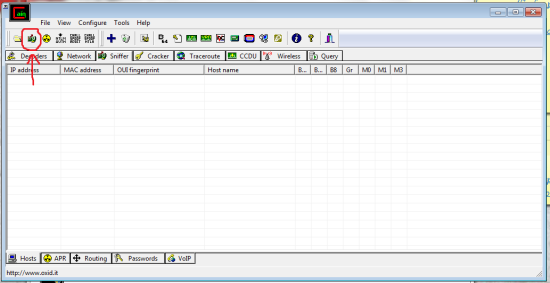
Second: Right click Cain and choose ‘run as administrator.’ on the top bar go to ‘configure’ and be sure to select your wireless card/adapter. now click where it says ‘Sniffer’ then this litte button towards the top left:

Next click any empty white box then the blue “+” symbol near the button you pressed just before. choose okay
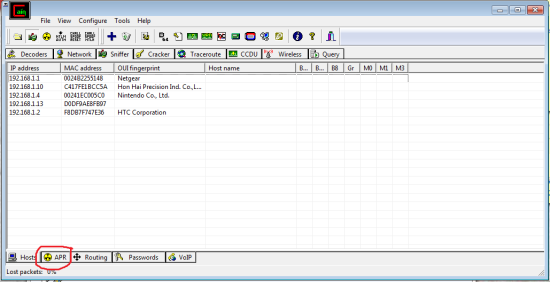
should look like this:

These are all the devices it was able to detect.

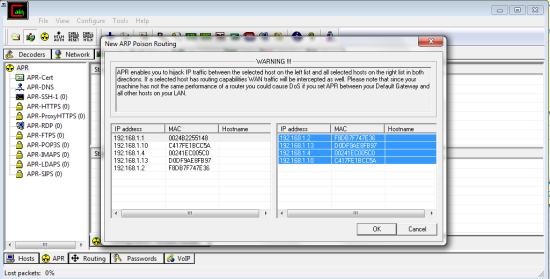
Now we go to APR on the bottom bar. Once again click any empty white box then the blue cross. It’s easiest to just go one by one and choose all possibilities.

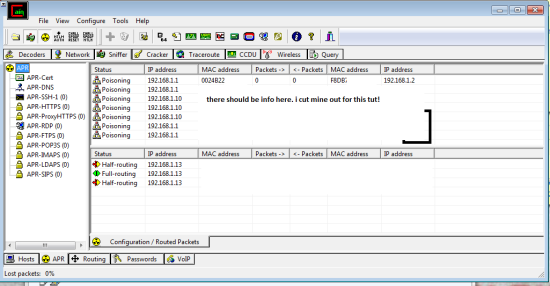
Now we have to poison them so we choose the little yellow hazard symbol towards the top left. should now look like this:

we are done here, just minimize Cain for now.

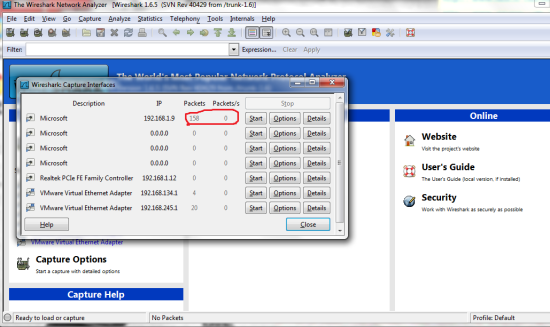
Third: Run wireshark as administrator. On the top bar choose ‘Capture’ then ‘Interfaces.’ Here you will have to choose your interface that is connected to the Network we are sniffing from. if you wait a few seconds you might see some traffic being collected as seen in my photo, just choose that interface b/c thats most likely it.

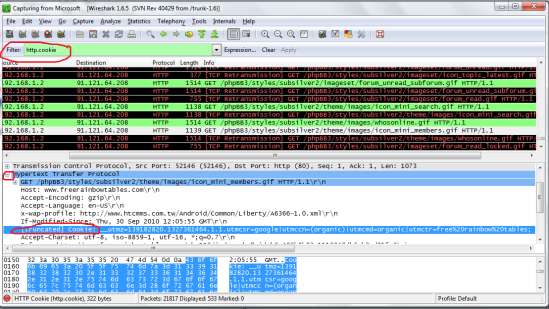
Wireshark will list and color-code all the traffic it sees for you. To make this simpler we can use the filter to only see the traffic we want, Type “http.cookie” in the filter. (Something to consider is to just filter to “http” and scroll through the entries looking for ones that start with the word “POST” this means that information was submitted to the webpage noted such as a username and a password! so if you see this just look through the details and you should see the info you want, most passwords will be hashed but use this site to decript them:http://www.md5decrypter.co.uk/ )

Latest Android Hacking Apps 2016

Here is an image:

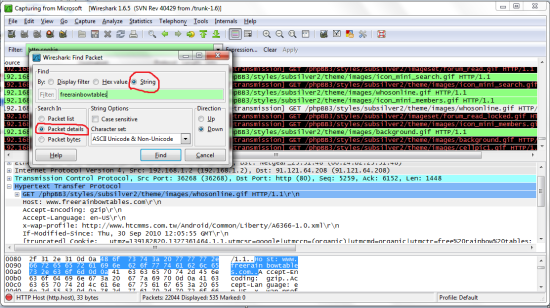
You can either look through this information manually or use the search function to find what you want. In my case i want to hijack the session of a user on the forumfreerainbowtables.com so i will use the search function (press Ctrl+F, or go to edit -> search) and type in the information i know for sure will be in the entry. if your hijacking someones facebook put ‘facebook’ there. Most of the time to be safe i do not use the first entry i see b/c this will only work if the person is auto logged in, so just go down a few more until you see one you think will work (just use common sense).

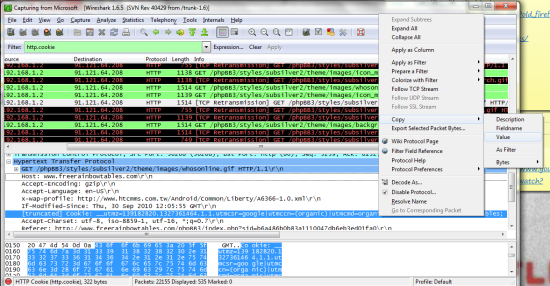
 What we need are the cookies. Here are what mine look like and how to get there. With practice you will be able to tell which cookies are used for logins and be able to limit failed attempts.

Copy the cookies as value and save them into a notepad (shown in pic above). I would suggest to seperate everywhere you see a “;” bc this suggests that is the begining of the next entry. The text to the left of the = is the name of the cookie and the text to the right is its value.

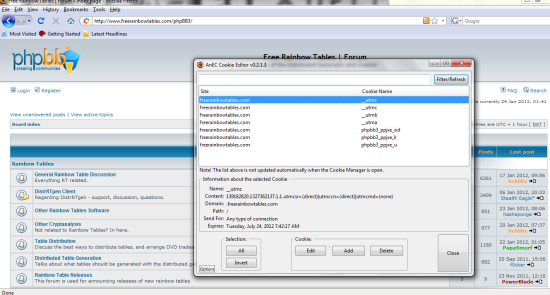
Final: Open up your firefox browser with Add n Edit enabled. You can get to your add ons by going to tools and they should all be listed in the drop down tab. First go to the website you are hijjacking the session from then open your cookie editor. Should look something like this:

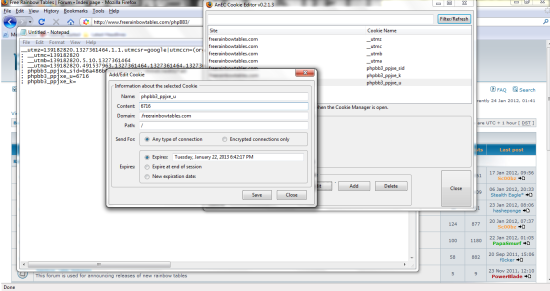
The last thing to do is to change your cookies to match the ones you captured. If the cookies given to you by the site expire (like the ones in my picture do) you will have to delete them and add all the ones we captured earlier in. if they do not expire you can just edit them. Bottom line is all the cookies must match the cookies you captures in the earlier steps EXACTLY! Make sure you do not add any extras and that you did not miss anything. Also all fields must be filled in (Path and Domain as well as Name and Value). My path is “/” and my domain is “.freerainbowtables.com”
mine looks like this:

You are now done, Just close the cookie editor and reload the webpage. If done correctly with the correct cookies you should be logged in as the user you attacked!

Download Backtrack 5r3 Free - Latest (32 & 64 Bit)

Download Backtrack 5r3 Free - Latest (32 & 64 Bit)

BackTrack 5 R3 is one of the Most Powerful Linux Distribution used for Penetration and Find Loopholes in Websites, Software and Application. Basically, it is Based on GNOME Linux Distribution and Include many of Top used Security Tools Like MetaSploit, Wireshark, AirCrack, Nmap and other Digital Forensic Tools. BackTrack 5 R3 is Developed by Offensive Securities and Soon They are Stop BackTrack Linux Series. The Last Edition of this Operating System is BackTrack 5 R3 and Further They Starting a new Project that is also a Newest Version of This Operating System Known as Kali Linux. It is the Successor of Backtrack 5 R3 and Include all the Tools that you have in BackTrack 5 R3. BackTrack is also Found as Best Operating System Used by Hackers.

There are Millions of Security Researchers (White Hat) who use BackTrack 5 R3 for Digital Forensics, Testing Systems, Networks and Other Penetration work. But On the Other Hand, It is also the Favourite Operating System Picked by Hackers because of their Tools and Features. Hackers and Crackers use this Operating System, not For Testing Instead to Breaking Systems, Cracking Passwords, Hacking Accounts and other Notorious Work. BackTrack have all the Deadly Tools and Programs that you need to Break the Digital Systems. The Last Edition of BackTrack 5 R3 is released on August 13, 2012. After that, They Start Project Kali.

Features of BackTrack 5 R3:

Available in Different Flavours.Include all Hacking Tools.Preinstalled Digital Forensics.Simple and Easy Interface.Open Source for All People World Wide.Preinstalled Drivers.